# QGIS: Editing tide-corrected CSB data

<span style="font-size: 10.0pt; line-height: 115%;">For Trusted Nodes that prefer to use free and open-source GIS software, the following section describes how to edit tide-corrected CSB data using QGIS, and how to export shapefiles of data that can be shared with program participants.</span>

1. <span style="font-size: 10.0pt; line-height: 115%;"><span style="font-size: 10.0pt; line-height: 115%; font-family: 'Aptos',sans-serif; mso-ascii-theme-font: minor-latin; mso-fareast-font-family: Aptos; mso-fareast-theme-font: minor-latin; mso-hansi-theme-font: minor-latin; mso-bidi-font-family: 'Times New Roman'; mso-bidi-theme-font: minor-bidi; mso-ansi-language: EN-US; mso-fareast-language: EN-US; mso-bidi-language: AR-SA;">Launch QGIS and select **New** under the **Project** tab to create a new project.  
    </span></span>![image.png](https://cms-kb.marine.usf.edu/uploads/images/gallery/2026-01/scaled-1680-/y3oimage.png)
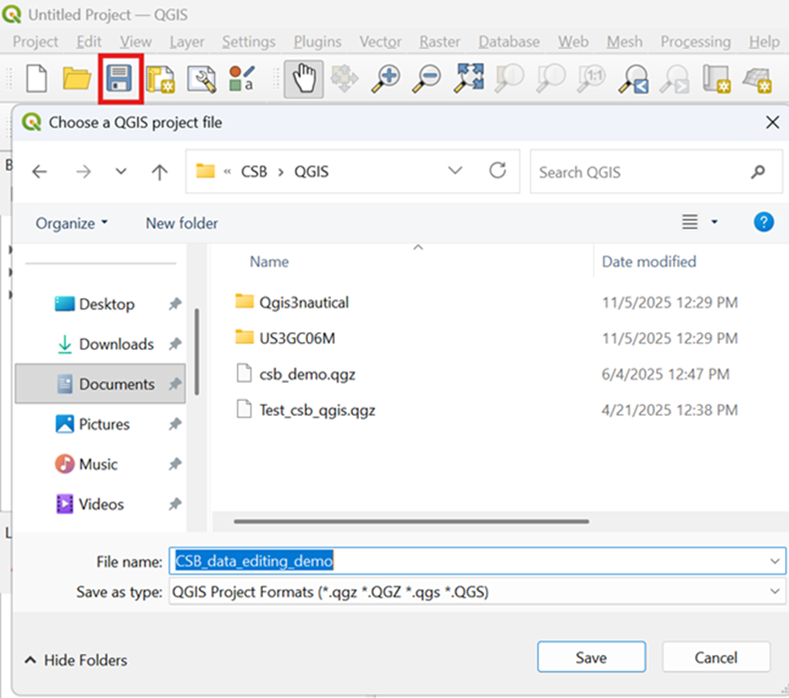
2. <span style="font-size: 10.0pt; line-height: 115%;"><span style="font-size: 10.0pt; line-height: 115%; font-family: 'Aptos',sans-serif; mso-ascii-theme-font: minor-latin; mso-fareast-font-family: Aptos; mso-fareast-theme-font: minor-latin; mso-hansi-theme-font: minor-latin; mso-bidi-font-family: 'Times New Roman'; mso-bidi-theme-font: minor-bidi; mso-ansi-language: EN-US; mso-fareast-language: EN-US; mso-bidi-language: AR-SA;">Click the *Save* icon to name the project and save it in an appropriate location.  
    </span></span>![image.png](https://cms-kb.marine.usf.edu/uploads/images/gallery/2026-01/scaled-1680-/tH5image.png)
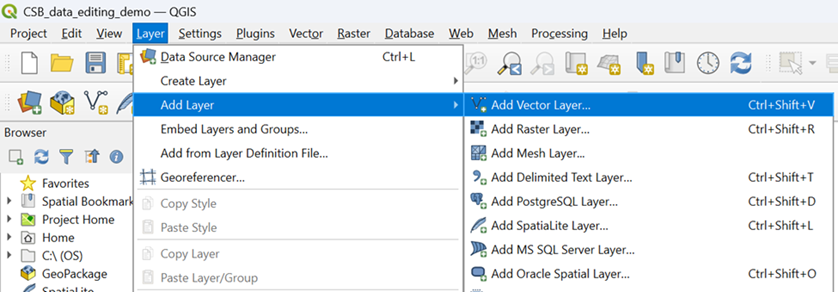
3. <span style="font-size: 10.0pt; line-height: 115%;"><span style="font-size: 10.0pt; line-height: 115%; font-family: 'Aptos',sans-serif; mso-ascii-theme-font: minor-latin; mso-fareast-font-family: Aptos; mso-fareast-theme-font: minor-latin; mso-hansi-theme-font: minor-latin; mso-bidi-font-family: 'Times New Roman'; mso-bidi-theme-font: minor-bidi; mso-ansi-language: EN-US; mso-fareast-language: EN-US; mso-bidi-language: AR-SA;">Under the **Layer** tab, click on **Add Layer** and select **Add Vector Layer** from the drop-down menu.  
    </span></span>![image.png](https://cms-kb.marine.usf.edu/uploads/images/gallery/2026-01/scaled-1680-/pjkimage.png)
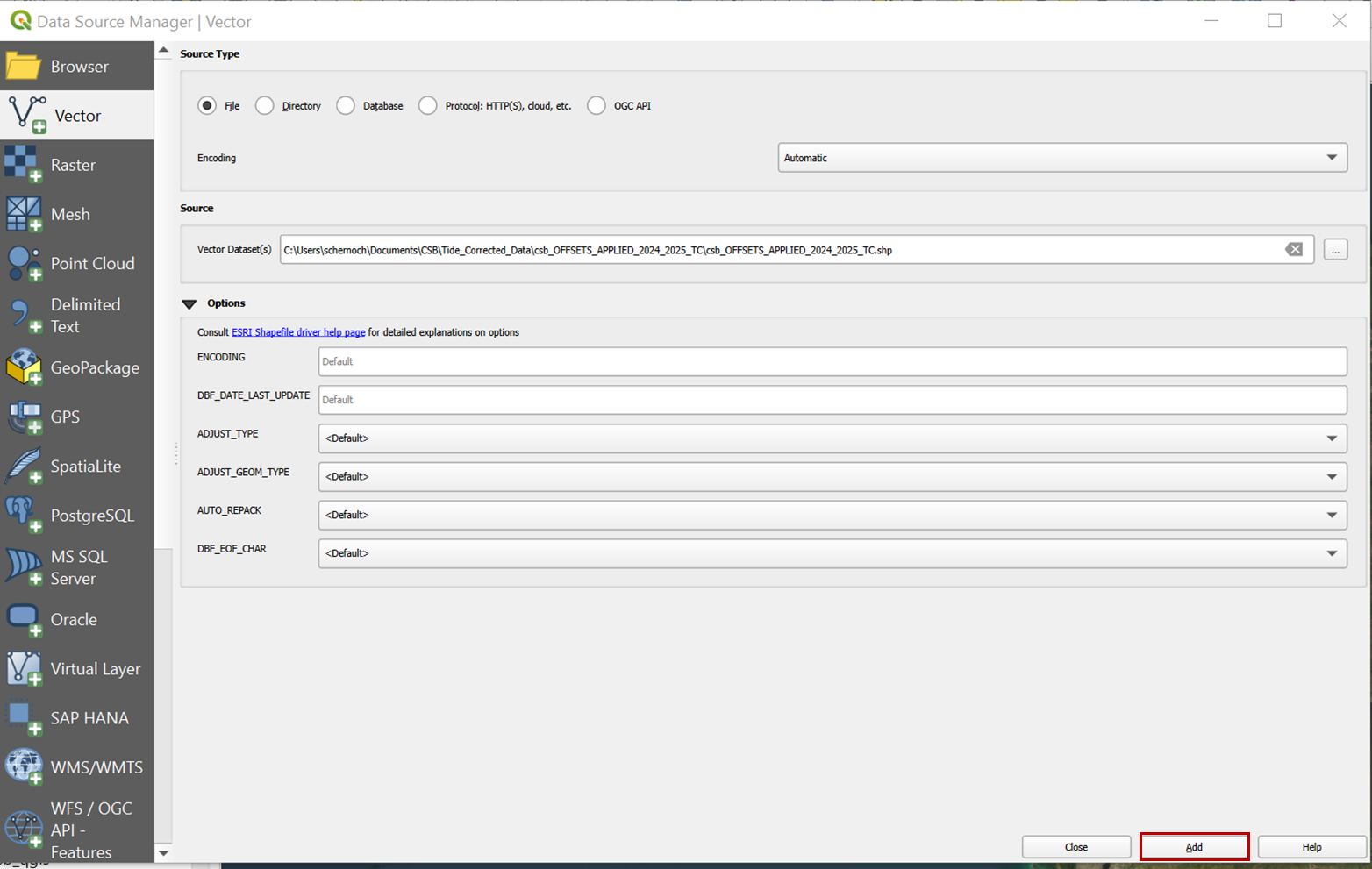
4. In <span style="font-size: 10.0pt; line-height: 115%; font-family: 'Aptos',sans-serif; mso-ascii-theme-font: minor-latin; mso-fareast-font-family: Aptos; mso-fareast-theme-font: minor-latin; mso-hansi-theme-font: minor-latin; mso-bidi-font-family: 'Times New Roman'; mso-bidi-theme-font: minor-bidi; mso-ansi-language: EN-US; mso-fareast-language: EN-US; mso-bidi-language: AR-SA;">the **Source / Vector Dataset** box, navigate to the .gpkg of tide-corrected data that was output by Pydro. Click **Add** to import the data to the project.  
    </span>![image.png](https://cms-kb.marine.usf.edu/uploads/images/gallery/2026-01/scaled-1680-/KR1image.png)
5. *<span style="font-size: 10.0pt; line-height: 115%; font-family: 'Aptos',sans-serif; mso-ascii-theme-font: minor-latin; mso-fareast-font-family: Aptos; mso-fareast-theme-font: minor-latin; mso-hansi-theme-font: minor-latin; mso-bidi-font-family: 'Times New Roman'; mso-bidi-theme-font: minor-bidi; mso-ansi-language: EN-US; mso-fareast-language: EN-US; mso-bidi-language: AR-SA;">Right click </span>*<span style="font-size: 10.0pt; line-height: 115%; font-family: 'Aptos',sans-serif; mso-ascii-theme-font: minor-latin; mso-fareast-font-family: Aptos; mso-fareast-theme-font: minor-latin; mso-hansi-theme-font: minor-latin; mso-bidi-font-family: 'Times New Roman'; mso-bidi-theme-font: minor-bidi; mso-ansi-language: EN-US; mso-fareast-language: EN-US; mso-bidi-language: AR-SA;">on the vector layer and select **Open Attribute Table**.  
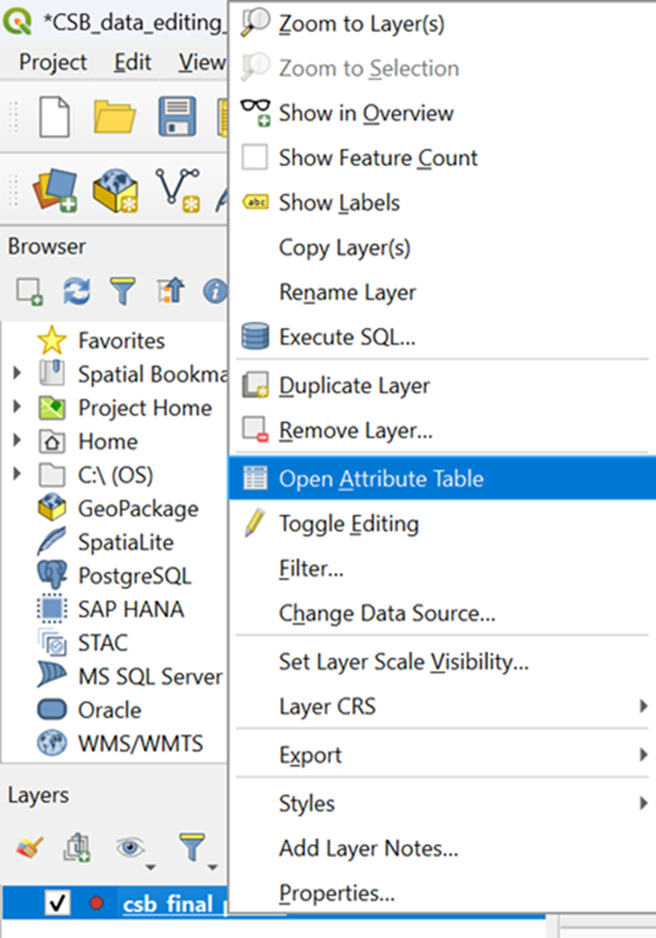
    </span>![image.png](https://cms-kb.marine.usf.edu/uploads/images/gallery/2026-01/scaled-1680-/5UZimage.png)
6. <span style="font-size: 10.0pt; line-height: 115%; font-family: 'Aptos',sans-serif; mso-ascii-theme-font: minor-latin; mso-fareast-font-family: Aptos; mso-fareast-theme-font: minor-latin; mso-hansi-theme-font: minor-latin; mso-bidi-font-family: 'Times New Roman'; mso-bidi-theme-font: minor-bidi; mso-ansi-language: EN-US; mso-fareast-language: EN-US; mso-bidi-language: AR-SA;">The table should contain the columns**: lat, lon, time, depth,** and **platform\_name.** </span>![image.png](https://cms-kb.marine.usf.edu/uploads/images/gallery/2026-01/scaled-1680-/fEWimage.png)

    
    ***<span style="font-size: 10.0pt; line-height: 115%;">If your shapefile contains data from multiple participants, you will need to apply a selection query to create individual layers for each participant's data.</span>***
7. <span style="font-size: 10.0pt; line-height: 115%; font-family: 'Aptos',sans-serif; mso-ascii-theme-font: minor-latin; mso-fareast-font-family: Aptos; mso-fareast-theme-font: minor-latin; mso-hansi-theme-font: minor-latin; mso-bidi-font-family: 'Times New Roman'; mso-bidi-theme-font: minor-bidi; mso-ansi-language: EN-US; mso-fareast-language: EN-US; mso-bidi-language: AR-SA;">Select the CSB vector layer and click on the **Select Features by Value** icon. To select all data points from an individual participant, enter an appropriate term into the *platform\_name* box, and set the filter to *Contains*. Click on **Select Features** to apply the selection.  
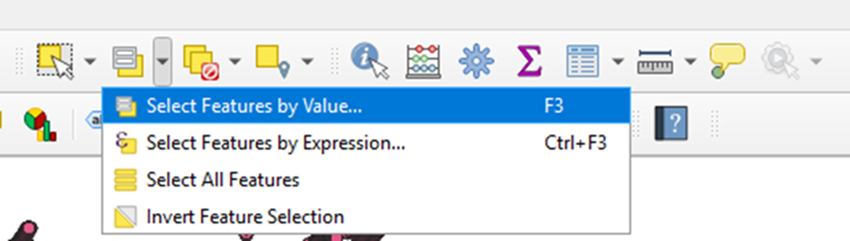
    </span>![image.png](https://cms-kb.marine.usf.edu/uploads/images/gallery/2026-01/scaled-1680-/YHFimage.png)
    
    ![image.png](https://cms-kb.marine.usf.edu/uploads/images/gallery/2026-01/scaled-1680-/6pCimage.png)
8. <span style="font-size: 10.0pt; line-height: 115%; font-family: 'Aptos',sans-serif; mso-ascii-theme-font: minor-latin; mso-fareast-font-family: Aptos; mso-fareast-theme-font: minor-latin; mso-hansi-theme-font: minor-latin; mso-bidi-font-family: 'Times New Roman'; mso-bidi-theme-font: minor-bidi; mso-ansi-language: EN-US; mso-fareast-language: EN-US; mso-bidi-language: AR-SA;">A banner at the bottom left of the window should read out how many points were included in the selection.  
    </span>![image.png](https://cms-kb.marine.usf.edu/uploads/images/gallery/2026-01/scaled-1680-/Zzbimage.png)
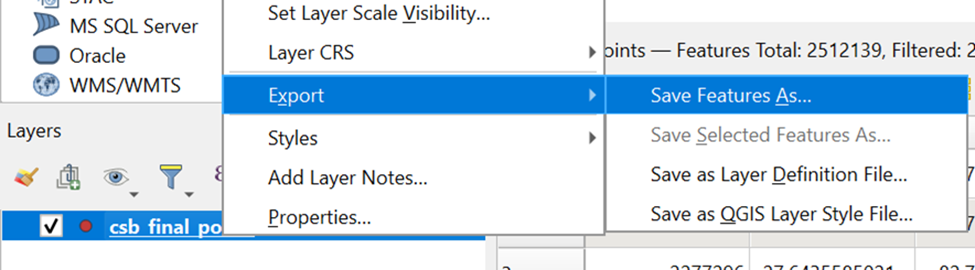
9. <span style="font-size: 10.0pt; line-height: 115%; font-family: 'Aptos',sans-serif; mso-ascii-theme-font: minor-latin; mso-fareast-font-family: Aptos; mso-fareast-theme-font: minor-latin; mso-hansi-theme-font: minor-latin; mso-bidi-font-family: 'Times New Roman'; mso-bidi-theme-font: minor-bidi; mso-ansi-language: EN-US; mso-fareast-language: EN-US; mso-bidi-language: AR-SA;">*Right click* on the vector layer and under the **Export** drop-down menu, select **Save Feature As**</span><span style="font-size: 10.0pt; line-height: 115%; font-family: 'Aptos',sans-serif; mso-ascii-theme-font: minor-latin; mso-fareast-font-family: Aptos; mso-fareast-theme-font: minor-latin; mso-hansi-theme-font: minor-latin; mso-bidi-font-family: 'Times New Roman'; mso-bidi-theme-font: minor-bidi; mso-ansi-language: EN-US; mso-fareast-language: EN-US; mso-bidi-language: AR-SA;">.  
    </span>![image.png](https://cms-kb.marine.usf.edu/uploads/images/gallery/2026-01/scaled-1680-/DaCimage.png)
10. <span style="font-size: 10.0pt; line-height: 115%; font-family: 'Aptos',sans-serif; mso-ascii-theme-font: minor-latin; mso-fareast-font-family: Aptos; mso-fareast-theme-font: minor-latin; mso-hansi-theme-font: minor-latin; mso-bidi-font-family: 'Times New Roman'; mso-bidi-theme-font: minor-bidi; mso-ansi-language: EN-US; mso-fareast-language: EN-US; mso-bidi-language: AR-SA;">Select *ESRI Shapefile* as the **Format** and add an appropriate file name and location. Make sure to check the box to *Save only selected features.* Click **OK** to save.  
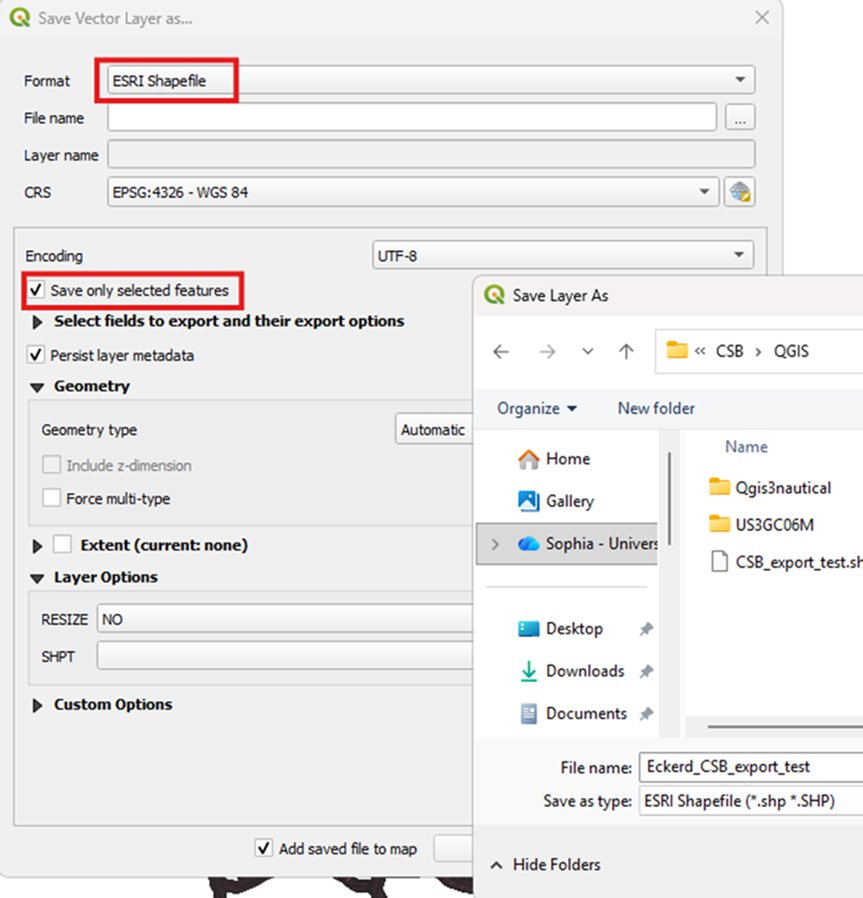
    </span>![image.png](https://cms-kb.marine.usf.edu/uploads/images/gallery/2026-01/scaled-1680-/WA4image.png)

<p class="callout success"><span style="font-size: 10.0pt; line-height: 115%;">You now have a shapefile of tide-corrected CSB data that can be zipped and sent to an individual participant.</span></p>