# QGIS: Data visualization
##### Motivation
Some crowdsourced bathymetry participants may have a clear idea of how they intend to use the depth soundings they've collected and what data format best suits that purpose. Others may benefit from a simple tutorial on how to visualize their data using a free, open-source software ([QGIS](https://qgis.org/project/overview/)).
This will allow the Trusted Node to return data to participants in the .shp file format and ensure that participants can easily visualize their contributions to the program. This option may be particularly valuable to newly established Trusted Nodes that have not yet constructed an ArcGIS Hub site (e.g., [Crowd the Bay](https://crowdthebay-usfmarsci.hub.arcgis.com/)) or similar platform for public CSB data access.
##### Tutorial
1. You will first need to [download QGIS](https://qgis.org/download/). (If needed, installation instructions are available [here](https://qgis.org/resources/installation-guide/)).
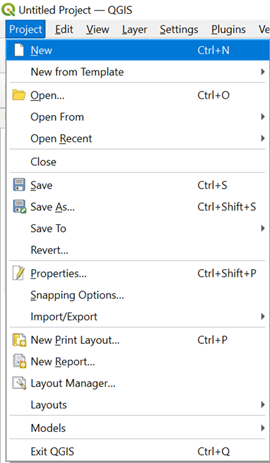
2. Launch QGIS. Click on the **Project** tab and select '**New**' to open a blank map. Make sure to save your project with an appropriate name.
3. Click on the **Plugins** tab and select '**Manage and Install Plugins**.'

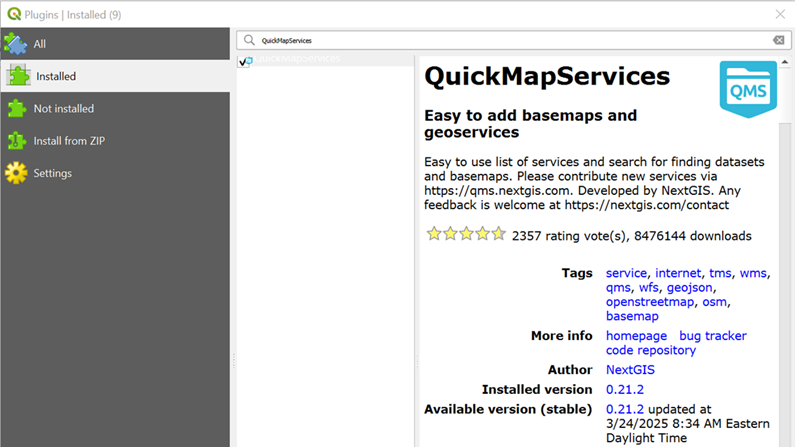
4. Search for and install the **QuickMapServices** plugin.
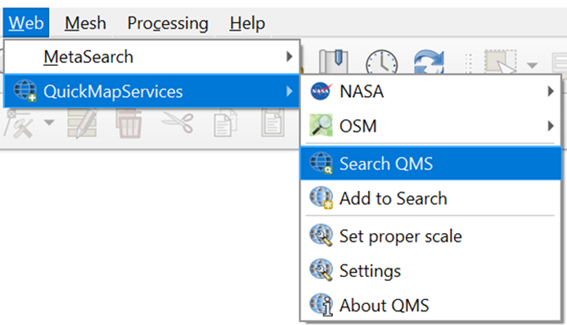
5. Under the **Web** tab, select **QuickMapServices** and click on '**Search QMS**.'
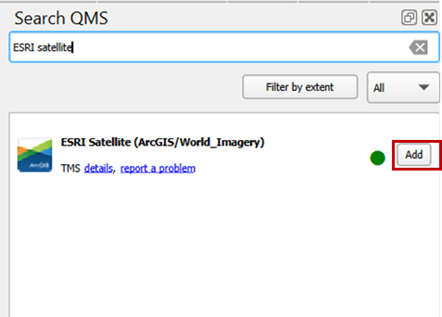
6. Search for **ESRI Satellite (ArcGIS/World\_Imagery)** and click '**Add**.'
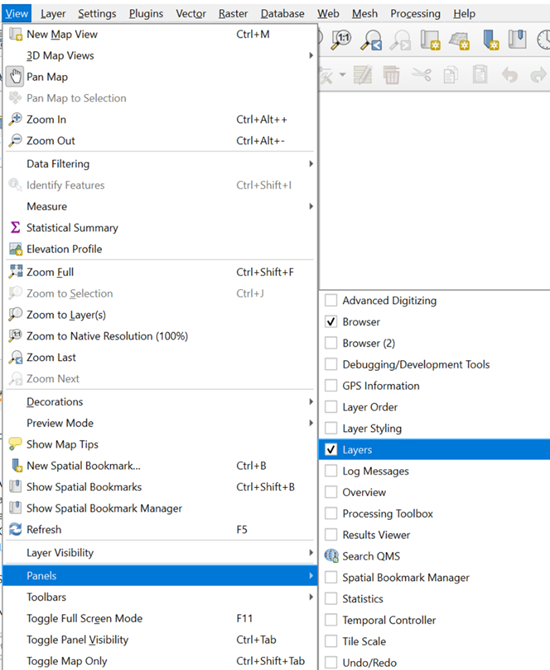
7. Under the **View** tab, click **Panels** and turn on the '**Layers**' option.
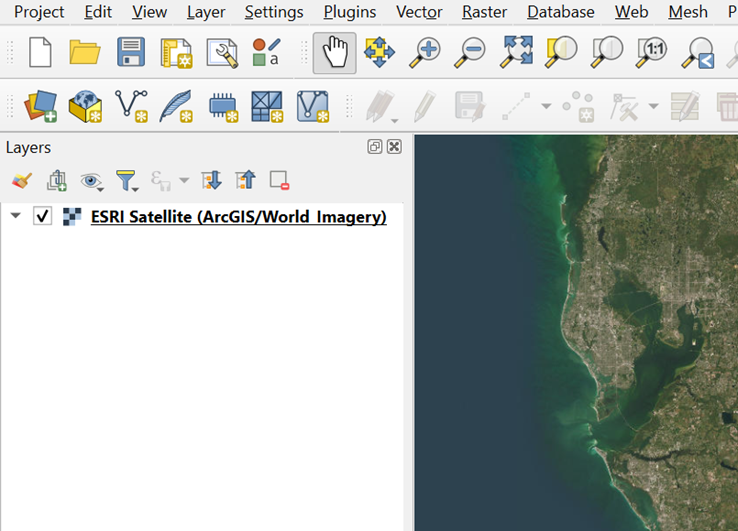
8. In the **Layers** panel, check the box for **ESRI Satellite (ArcGIS/World\_Imagery)** to turn it on.
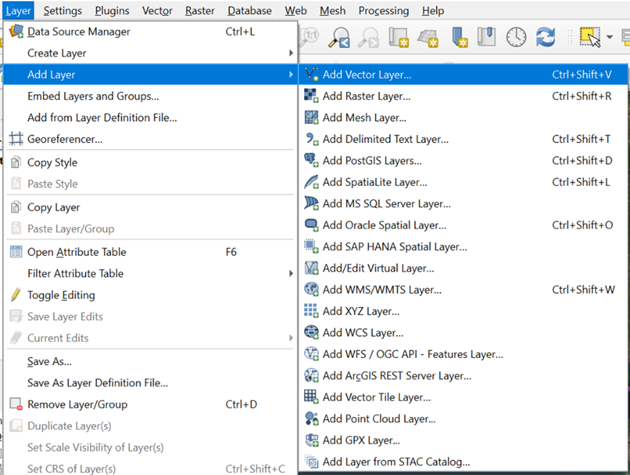
9. Under the **Layer** tab, click **Add Laye**r and select '**Add Vector Layer**.'
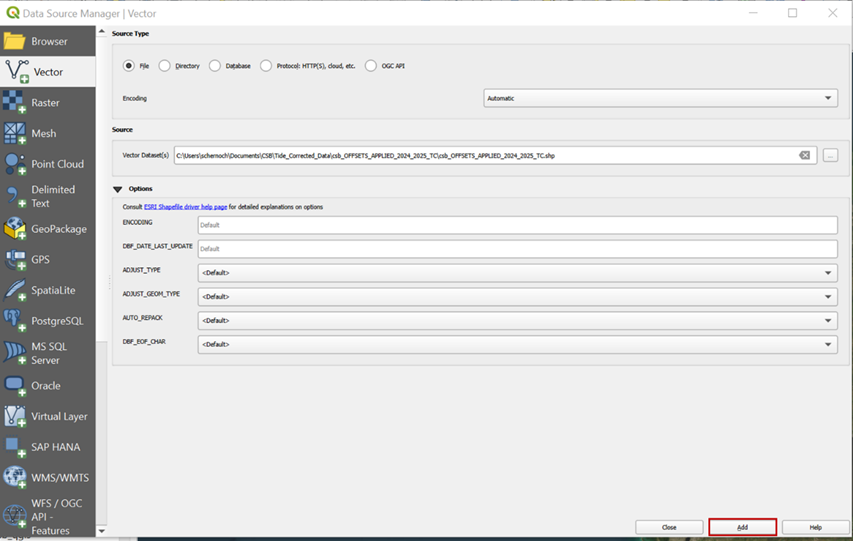
10. In the **Source** box, enter the path to the tide-corrected CSB .shp file you wish to visualize, and click '**Add**.'
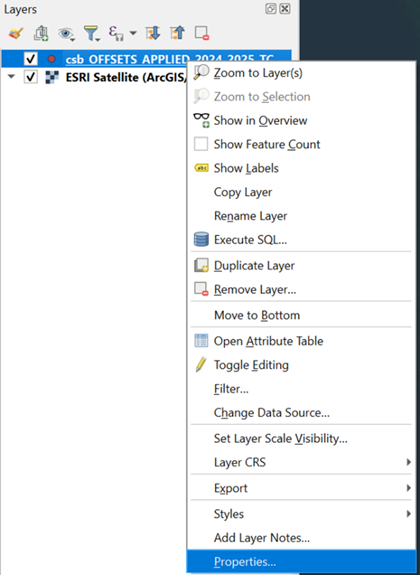
11. In the **Layers** panel, right click on the layer you just added, and select '**Properties**.'
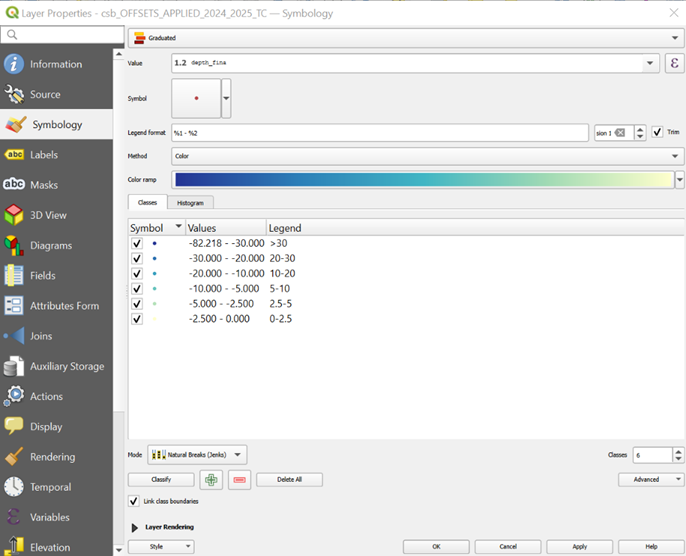
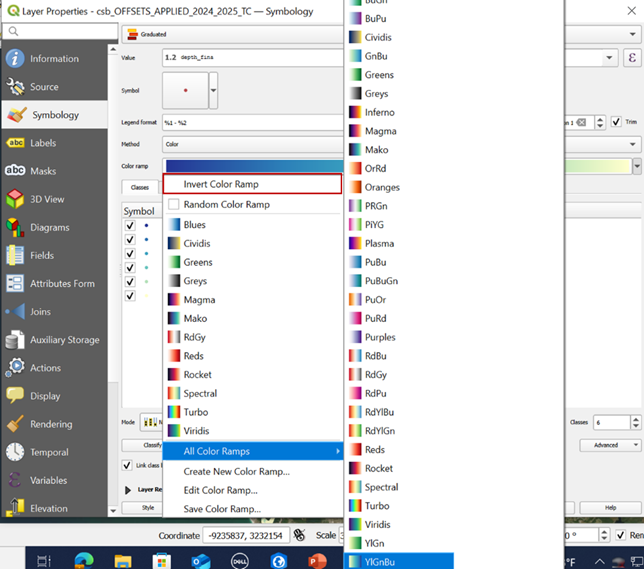
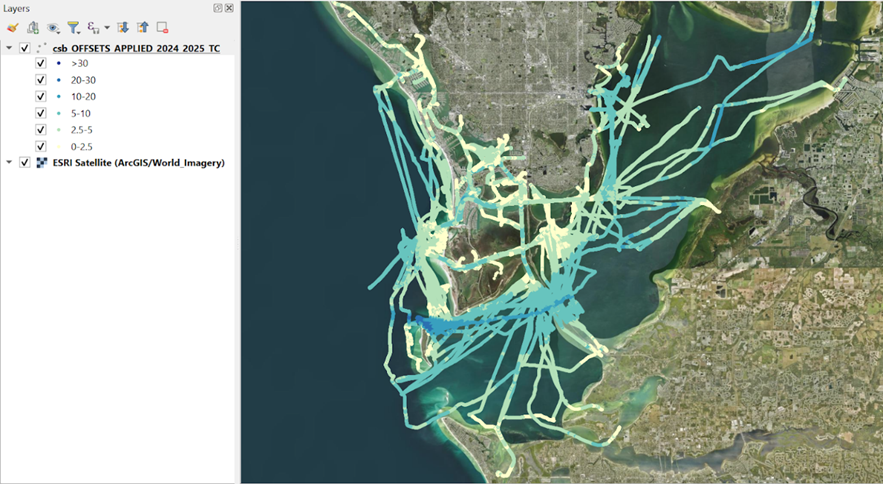
12. In the **Symbology** window, set the symbol type to *Graduated*, **Value** to *depth*, **Color ramp** to *YlGnBu* (and inverted), and set the classification **Mode**, **Values**, and **Legend** to best suit the range and distribution of your dataset. Click '**Apply**' to confirm changes.
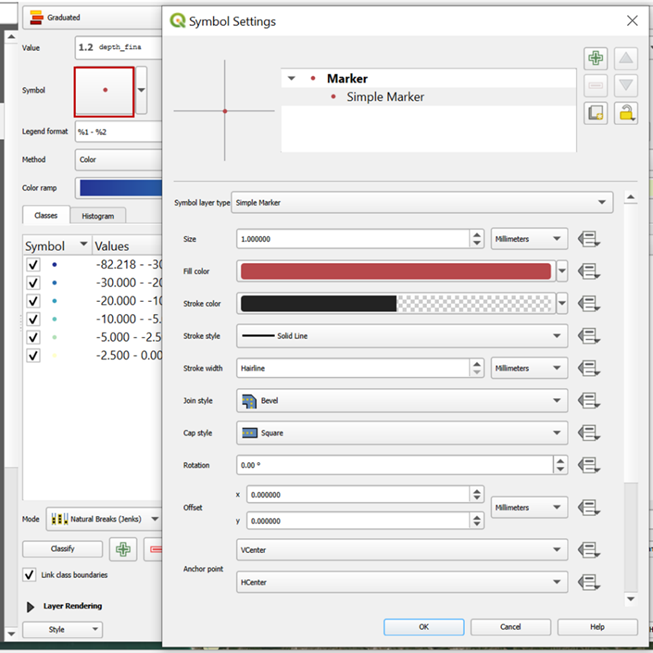
13. Click on the **Symbol** icon to adjust symbol settings. Set the **Size** to *1* and the **Stroke color** to *transparent*. Click '**OK**' to apply changes.
You should now have a well-symbolized, tide-corrected CSB data layer to work with.
If you're feeling tech-savvy and interested in overlaying CSB data onto a NOAA Electronic Navigational Chart for comparison, you can locate and download the appropriate charts[ here](https://charts.noaa.gov/InteractiveCatalog/nrnc.shtml?rnc=12402) and follow[ these instructions](https://www.sigterritoires.fr/index.php/en/displaying-s57-nautical-charts-in-qgis-3-x/) to display them in QGIS.