Data Transformation and Submission
WIBL and YDVR data processing
Getting Set Up
You will need to install the following programs to run the WIBL processing scripts:
- Python 3.14: download here. Choose Customize Installation. Under Advanced Options check the box "Add Python to Environmental Variables." [More detailed instructions are provided here]


- Windows PowerShell 7: download here
- Miniconda: download here
- Visual Studio Code: download here
- WIBL GitHub Repository: Linked here. Save the repository to Desktop (or Documents) - do not leave it in Downloads.

Perform the following steps the first time you run the WIBL scripts:
Note: Edit file paths as needed to match the location where your files are saved locally
#Open Anaconda Prompt

#Run the following code
conda init powershell

#Close Anaconda Prompt
---------------------------------------------
#Run Windows PowerShell 7 as an administrator (see screenshot below)

#Run the following code
Set-ExecutionPolicy Unrestricted

#Close Windows PowerShell 7, then reopen (not as admin)

#Set directory to the wibl-python folder within the WIBL repository
cd .\Desktop\WIBL-main\wibl-python

#Install packages
pip install .

#Create environment
conda env create -f environment.yml

#Execute the environment
conda activate wibl-python
Metadata - Configuration - Authentication
If you did not preload metadata onto the logger before installing it, you will need to create your metadata and configuration files before you can process raw data with the WIBL scripts.
Example metadata and configuration files can be found in the WIBL repository. Guidance for how to properly format each of these file types can be found in the README file located in the same folder.
Metadata, configuration, and README file locations in the WIBL repository:
WIBL-Main\wibl-python\examples\ship-metadata-complete.json
WIBL-Main\wibl-python\examples\configure-submission.json
WIBL-Main\wibl-python\examples\configure-submission-test.json
WIBL-Main\wibl-python\examples\README,md
To create metadata and configuration files specific to your dataset:
- Copy the example files to a new folder in Documents (or Desktop) - don't work within the WIBL repository.
- Open the copied files in Visual Studio Code to edit.
- In the configuration file, make sure to set
"local": false, or else your files will not be transmitted to the DCDB when you run submitDCDB.ps1. - The configure-submission-test.json can be used to submit data to the test-API on the DCDB (does not officially submit data).
- Save the edited files with appropriate names (e.g., chance-maritime-metadata-complete.json and configure-submission-USF.json).
Further information on mandatory and recommended metadata can be found in IHO's Guidance to Crowdsourced Bathymetry B-12 Edition 3.0.0
The more comprehensive the metadata, the more valuable CSB products are to end-users! The DCDB will accept submissions meeting the mandatory metadata requirements, but organizations should strive to meet the highest standards recommended whenever possible.
You will need to download your organization’s Trusted Node authentication token in order to submit processed data to the DCDB.
Running the WIBL Scripts
Note: There is a README file with more detailed information about the WIBL data management scripts and how to use them in the WIBL repository.
README file location in the WIBL repository:
WIBL-main\wibl-python\scripts\data-management\README.md
Once you're ready to start processing, perform the following steps:
#Run Windows PowerShell 7 as an administrator

#Run the following code
Set-ExecutionPolicy Unrestricted

#Close Windows PowerShell 7, then reopen (not as admin)

#Set directory to folder where raw files are saved (change folder path as needed)
cd .\Documents\CSB\Chance-Maritime\1-DataProcessing\

#Rename raw files to .wibl
Get-ChildItem * | Rename-Item -NewName { $ .Name + ".wibl" }

#Set directory to WIBL data-management scripts folder
cd .\Desktop\WIBL-main\wibl-python\scripts\data-management\

#Activate environment
conda activate wibl-python

#Process .wibl to .geojson
.\processWibl.ps1 [[-wiblPath] <string>] [[-metadataFile] <string>] [[-wiblConfig] <string>]

#Validate .geojson against csbschema
.\validateWibl.ps1 [[-inPath] <string>] [[-extension] GeoJSON]processWibl.ps1: -wiblPath is the path to the folder where .wibl files are saved, -metadataFile is the path to the metadata file you created, and -wiblConfig is the path to the configuration file you created.
Example: .\processWibl.ps1 -wiblPath C:\Users\schernoch\Documents\CSB\Chance-Maritime\1-DataProcessing\ -metadataFile C:\Users\schernoch\Documents\CSB\Chance-Maritime\0-Metadata\chance-maritime-metadata-complete.json -wiblConfig C:\Users\schernoch\Documents\CSB\Chance-Maritime\0-Metadata\configure-submission-USF.json
validateWibl.ps1: -inPath is the folder where processed .geojson files are saved, -extension should be set to GeoJSON
Example: .\validateWibl.ps1 -inPath C:\Users\schernoch\Documents\CSB\Chance-Maritime\1-DataProcessing\ -extension GeoJSON
Information on the most up-to-date csbschema can be found here. Once the .geojson files have been validated against csbschema, they are ready to be submitted to the DCDB.
There is also a new CSB validator tool written by Clint Campbell (available for download through this link) that allows CSB data to be validated by time stamp (data not collected from the future) and GPS (GPS location exists) to ensure data will actually be accepted into DCDB. This tool enables a CSB manager to validate not only that the data has something in every B-12 required section like the WIBL validator (e.g., there is a number in the “depth” category), but will actually reflect the DCDB’s data validation process and signal to practitioners if the data will be flagged in the system once submitted (e.g., the depth is 1E34, which is both beyond the transducer readable range and is in a format that cannot be utilized by DCDB, resulting in the submission being rejected).
Submission of GEOJSON data to the DCDB
All data submitted to the DCDB need to be in .geojson (preferred) or XYZ format and contain appropriate metadata fields. These requirements are outlined in DCDB guidance documents.
- For WIBL or YDVR data, you will need to upload data periodically. See the WIBL and YDVR Data Processing protocol for full details.
- For Mussel Kit data, OFM handles data submission on behalf of the Trusted Node, using the Trusted Node's secure token.
- OFM can also provide the raw data back to Trusted Nodes via Dropbox or AWS S3 buckets (other options are also available).
Once your WIBL or YDVR data have been validated, they can be submitted to the DCDB using the following PowerShell script:
#Run Windows PowerShell 7 as an administrator

#Run the following code
Set-ExecutionPolicy Unrestricted

#Close Windows PowerShell 7, then reopen (not as admin)

#Set directory to WIBL data-management scripts folder
cd .\Desktop\WIBL-main\wibl-python\scripts\data-management\

#Activate environment
conda activate wibl-python

#Submit to DCDB
.\submitDCDB.ps1 [[-inPath] <string>] [[-authFile] <string>] [[-configFile] <string>] [[-extension] *.geojson]submitDCDB.ps1: -inPath is the folder where validated .geojson files are saved, -authFile is the authentication token .txt file, -configFile should be the same as used for processWibl.ps1, and -extension should be set to *.geojson.
Example: .\submitDCDB.ps1 -inPath C:\Users\schernoch\Documents\CSB\Chance-Maritime\2-Validated\ -authFile C:\Users\schernoch\Documents\CSB\Chance-Maritime\3-Submission\ingest-external-COMITUSF.txt -configFile C:\Users\schernoch\Documents\CSB\Chance-Maritime\0-Metadata\configure-submission-USF.json -extension *.geojson
When a file is successfully submitted to the DCDB, you should receive the following output:

Each time a file is submitted successfully, the program will print a submission ID. Make sure to log these submission IDs in case your files need to be tracked down by technical support staff at the DCDB for whatever reason.
If you are unable to batch-submit your processed data using the WIBL PowerShell script provided above, you can use either of the following options to manually submit your .geojson files to the DCDB
Option 1: Python script
Copy the following script into Visual Studio Code and replace <submissionToken_path.txt> and <geojson_path.geojson> with the appropriate file paths. Save the file as submit_geojson.py and make note of what folder you save it in.
import requests

token_path = r"<submissionToken_path.txt>"
geojson_path = r"<geojson_path.geojson>"
unique_id = "COMITUSF-e512gc2r-q565-279j-548i-e5fc6389cth2"
url = "https://www.ngdc.noaa.gov/ingest-external/upload/csb/geojson"

with open(token_path, "r") as f:
    token = f.read().strip()

headers = {
    "x-auth-token": token
}
files = {
    "file": ("wibl-raw.61.geojson", open(geojson_path, "rb"), "application/json"),
    "metadataInput": (None, f'{{"uniqueID": "{unique_id}"}}')
}

response = requests.post(url, headers=headers, files=files)

# === OUTPUT ===
print(f"Status Code: {response.status_code}")
print(response.text)
Perform the following steps to submit your .geojson file to the DCDB.
#Launch Command Prompt

#Call directory to the folder where submit_geojson.py is saved
cd .\<folder_path>

#Run the following code
python submit_geojson.py

#Record the submissionID
You should receive the following output if your file was successfully submitted to the DCDB:
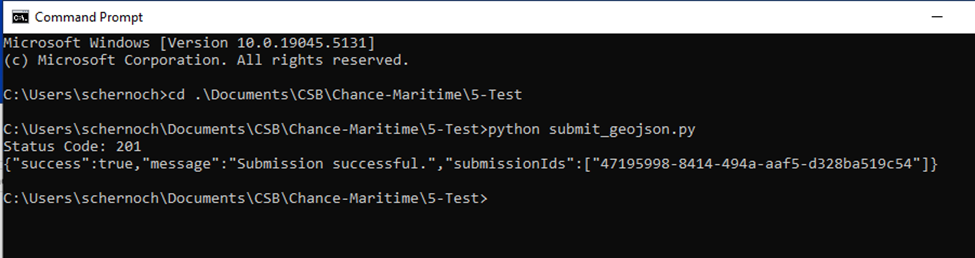
Each time a file is submitted successfully, the program will print a submissionID. Make sure to log these submissionIDs in case your files need to be tracked down by technical support staff at the DCDB for whatever reason.
If you have multiple .geojson files to submit, you will need to edit <geojson_path.geojson> within submit_geojson.py each time you submit a new file.
- This can be done relatively quickly if you keep submit_geojson.py open within Visual Studio Code, making sure to save (ctrl+S) your changes before running the code again.
- Once
<geojson_path.geojson>has been edited to the new file path, you can click the up arrow in Command Prompt to reload the previous command and click enter to run it.
Options 2: Batch script
Perform the following steps to submit your .geojson file to the DCDB. Make sure to replace <submissionToken_path.txt> and <geojson_path.geojson> with the appropriate file paths.
#Copy and paste the following code (lines 3-17) into Visual Studio Code

@echo off
REM Define paths and values
set "TOKEN_FILE=<submissionToken_path.txt>"
set "GEOJSON_FILE=<geojson_path.geojson>"
set "UNIQUE_ID=COMITUSF-e512gc2r-q565-279j-548i-e5fc6389cth2"

REM Read token
set /p TOKEN=<"%TOKEN_FILE%"

REM Run curl
curl -i -X POST "https://www.ngdc.noaa.gov/ingest-external/upload/csb/geojson"^
 -H "x-auth-token: %TOKEN%"^
 -H "Content-Type: multipart/form-data"^
 -F "file=@%GEOJSON_FILE%;type=application/json"^
 -F "metadataInput={\"uniqueID\":\"%UNIQUE_ID%\"}"

 #Replace <submissionToken_path.txt> and <geojson_path.geojson> with appropriate file paths

 #Launch Command Prompt

 #Copy and paste your edited code into Command Prompt

 #Run the code

 #Record the submissionID
You should receive the following output if your file was successfully submitted to the DCDB:

If you have multiple .geojson files to submit, each time you submit a new file you will need to edit <geojson_path.geojson> in Visual Studio Code and then run the edited code in Command Prompt.
Recommended: Test submission
If you would like to test out running the scripts without posting data to the DCDB Data Viewer, simply add /test/ to the endpoint URL, so it instead reads: https://www.ngdc.noaa.gov/ingest-external/upload/csb/test/geojson
The test endpoint should always be used first for any system or script testing. Submissions sent to the DCDB production endpoint are considered final submissions and are subject to a lengthy process to remove if submitted in error.
Graphical user interface
As of March 2025, a Graphical User Interface (GUI) is being developed to aid in the processing and submission of CSB data. The GUI should lower the barrier to entry for organizations interested in becoming involved with Seabed 2030, but lacking the time or expertise to learn the programming tools required to do so. As more information becomes available on this tool, this section will be developed more fully. This toolset can be found here.