# Data Extraction and Processing

<span>If your stakeholders would like to see their data for themselves, it may become pertinent that you download and share the data yourself. To do this, you will need to follow the steps outlined in the </span>[NCEI/DCDB data extraction](https://cms-kb.marine.usf.edu/books/crowdsourced-bathymetry-manual-2026/page/nceidcdb-data-extraction "NCEI/DCDB data extraction")<span> section. Once raw data are obtained from the DCDB, they should be tide corrected using the CSB Processing Tool in Pydro Explorer, following the instructions in the </span>[Pydro tidal corrections](https://cms-kb.marine.usf.edu/books/crowdsourced-bathymetry-manual-2026/page/pydro-tidal-corrections "Pydro tidal corrections")<span> section.</span>

# NCEI/DCDB data extraction

Perform the following steps to extract CSB data from the DCDB:

1. Go to the IHO Data Centre for Digital Bathymetry Viewer.  
    ![image.png](https://cms-kb.marine.usf.edu/uploads/images/gallery/2026-02/scaled-1680-/3s0image.png)
2. <span style="font-size: 12.0pt; line-height: 115%; font-family: 'Calibri',sans-serif; mso-ascii-theme-font: minor-latin; mso-fareast-font-family: Calibri; mso-fareast-theme-font: minor-latin; mso-hansi-theme-font: minor-latin; mso-bidi-font-family: 'Times New Roman'; mso-bidi-theme-font: minor-bidi; mso-ansi-language: EN-US; mso-fareast-language: EN-US; mso-bidi-language: AR-SA;">Click the **IHO DCDB/NOAA NCEI** drop down menu, <u>uncheck</u> the ‘**Multibeam Surveys**’ layer and select the ‘**Crowdsourced Bathymetry Files**' layer.  
    </span>![image.png](https://cms-kb.marine.usf.edu/uploads/images/gallery/2026-02/scaled-1680-/L4Mimage.png)
    
    
    - <span style="font-size: 12.0pt; line-height: 115%; font-family: 'Calibri',sans-serif; mso-ascii-theme-font: minor-latin; mso-fareast-font-family: Calibri; mso-fareast-theme-font: minor-latin; mso-hansi-theme-font: minor-latin; mso-bidi-font-family: 'Times New Roman'; mso-bidi-theme-font: minor-bidi; mso-ansi-language: EN-US; mso-fareast-language: EN-US; mso-bidi-language: AR-SA;">As an alternative to steps 1 and 2, you can use [this link](https://www.ncei.noaa.gov/maps/iho_dcdb/?layers=csb) (bookmark it) to navigate directly to the CSB data, instead of having to deselect the multibeam data  
        </span>![image.png](https://cms-kb.marine.usf.edu/uploads/images/gallery/2026-02/scaled-1680-/Aq6image.png)
3. <span style="font-size: 12.0pt; line-height: 115%; font-family: 'Calibri',sans-serif; mso-ascii-theme-font: minor-latin; mso-fareast-font-family: Calibri; mso-fareast-theme-font: minor-latin; mso-hansi-theme-font: minor-latin; mso-bidi-font-family: 'Times New Roman'; mso-bidi-theme-font: minor-bidi; mso-ansi-language: EN-US; mso-fareast-language: EN-US; mso-bidi-language: AR-SA;">Zoom in on the area you want to extract data from. You can also select ‘**Search CSB Files**’ to filter for a certain date range, Provider (Trusted Node), or Platform Name (vessel name). You can currently only search by one 'Platform Name' at a time, but the DCDB is working on enabling multi-platform searches.  
    </span>![image.png](https://cms-kb.marine.usf.edu/uploads/images/gallery/2026-02/scaled-1680-/bEGimage.png)
4. <span style="font-size: 12.0pt; line-height: 115%; font-family: 'Calibri',sans-serif; mso-ascii-theme-font: minor-latin; mso-fareast-font-family: Calibri; mso-fareast-theme-font: minor-latin; mso-hansi-theme-font: minor-latin; mso-bidi-font-family: 'Times New Roman'; mso-bidi-theme-font: minor-bidi; mso-ansi-language: EN-US; mso-fareast-language: EN-US; mso-bidi-language: AR-SA;">When you are ready to extract data, click the '**Identify**' drop-down menu and select the option you would like to use.  
    </span>![image.png](https://cms-kb.marine.usf.edu/uploads/images/gallery/2026-02/scaled-1680-/MqWimage.png)
5. <span style="font-size: 12.0pt; line-height: 115%; font-family: 'Calibri',sans-serif; mso-ascii-theme-font: minor-latin; mso-fareast-font-family: Calibri; mso-fareast-theme-font: minor-latin; mso-hansi-theme-font: minor-latin; mso-bidi-font-family: 'Times New Roman'; mso-bidi-theme-font: minor-bidi; mso-ansi-language: EN-US; mso-fareast-language: EN-US; mso-bidi-language: AR-SA;">Draw your bounding area of interest, select ‘**Extract NCEI/DCDB Data**’ and choose the ‘**Extract CSB Point Store Data**.’ You will be prompted to enter an email address where the link to download files will be sent to. <u>Do not check the box for ‘Create Grid.</u>' Leave the default for the rest of the options.  
    </span>![image.png](https://cms-kb.marine.usf.edu/uploads/images/gallery/2026-02/scaled-1680-/H6iimage.png)
    
    ![image.png](https://cms-kb.marine.usf.edu/uploads/images/gallery/2026-02/scaled-1680-/iaDimage.png)
6. <span style="font-size: 12.0pt; line-height: 115%; font-family: 'Calibri',sans-serif; mso-ascii-theme-font: minor-latin; mso-fareast-font-family: Calibri; mso-fareast-theme-font: minor-latin; mso-hansi-theme-font: minor-latin; mso-bidi-font-family: 'Times New Roman'; mso-bidi-theme-font: minor-bidi; mso-ansi-language: EN-US; mso-fareast-language: EN-US; mso-bidi-language: AR-SA;">Depending on the current volume of requests and the size of your requested area, you should receive an email with a link to download your data within a few minutes.</span>

<p class="callout success"><span style="font-size: 12.0pt; line-height: 115%; font-family: 'Calibri',sans-serif; mso-ascii-theme-font: minor-latin; mso-fareast-font-family: Calibri; mso-fareast-theme-font: minor-latin; mso-hansi-theme-font: minor-latin; mso-bidi-font-family: 'Times New Roman'; mso-bidi-theme-font: minor-bidi; mso-ansi-language: EN-US; mso-fareast-language: EN-US; mso-bidi-language: AR-SA;">Your CSB data are now downloaded and ready to have[ Pydro tidal corrections](https://cms-kb.marine.usf.edu/books/crowdsourced-bathymetry-manual-2026/page/pydro-tidal-corrections "Pydro tidal corrections") applied.</span></p>

# Pydro tidal corrections

<p class="callout info">Support Contact: Anthony Klemm, NOAA Office of Coast Survey  
<span style="mso-spacerun: yes;"> </span>anthony.r.klemm@noaa.gov </p>

Perform the following steps to process CSB data extracted from NCEI/DCDB to correct for tides and data-derived vessel transducer offset values:

1. You will need to download the **Pydro** software[ here.](https://svn.pydro.noaa.gov/Docs/html/Pydro/downloads.html)
2. Follow the [Data Extraction](https://cms-kb.marine.usf.edu/books/crowdsourced-bathymetry-manual-2026/page/nceidcdb-data-extraction "NCEI/DCDB data extraction") instructions to retrieve the data you want to process.
3. When you receive the email link from NCEI, download the data and save it in an appropriate location.
4. Open **Pydro**, navigate to the ‘**BETA/EXPERIMENTAL**’ section of the Applications pane, and select ‘**CSB Processing.’**

**<span style="mso-no-proof: yes;">![](https://cms-kb.marine.usf.edu/uploads/images/gallery/2026-01/embedded-image-1tuvpkbj.png)</span>**
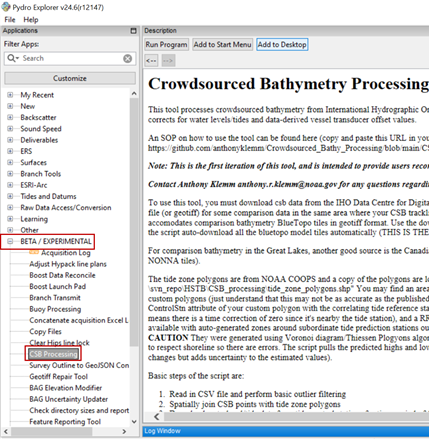
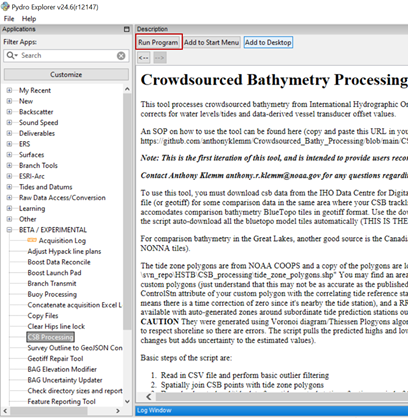
5. Click '**Run Program**'. You’ll see a Windows terminal execute the python environment and a GUI should eventually pop up.
<span style="mso-no-proof: yes;">![](https://cms-kb.marine.usf.edu/uploads/images/gallery/2026-01/embedded-image-ybj5xr8n.png)</span>

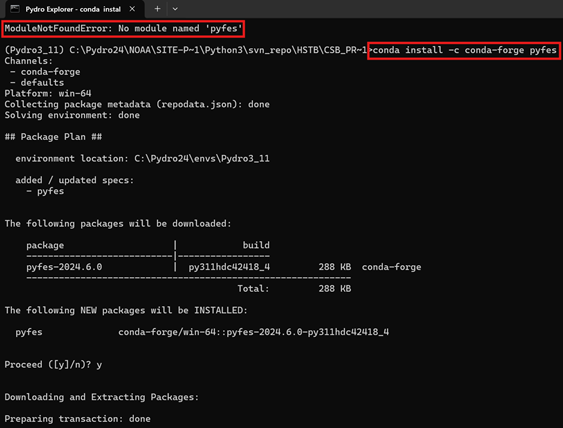
<p class="callout warning">If no GUI pops up, open the command line window to check if the following error was encountered:   
`ModuleNotFoundError: No module named 'pyfes' `  
</p>

To resolve this error, enter the following line of code: `conda install -c conda-forge pyfes`

Click **Run Program** again and the GUI should pop up.
<span style="mso-no-proof: yes;">![](https://cms-kb.marine.usf.edu/uploads/images/gallery/2026-01/embedded-image-kvwfle42.png)</span>

6. In the popup window: **(1)** locate and select the **Folder** containing the file you downloaded from NCEI; navigate to the Tide Zone Beta.shp file (see file path provided below); and specify an output folder. **(2)** make sure this is <u>checked</u> to use automated BlueTopo data, **(3)** the checked boxes in the image below are the suggested outputs and grid resolution **(5-10)** for the workflow.  
    **Note:** to streamline data processing, set a designated folder where Pydro outputs .gpkg files, so a single folder connection can be added to your GIS project.

<span style="mso-no-proof: yes;">![](http://131.247.139.77:6875/uploads/images/gallery/2025-12/embedded-image-c8wnfxkt.png)  
</span>

<p class="callout warning">For use outside the United States, the CSB Processing tool has an option to use a global tide model (AVISO+ FES2022b) to resolve/correct depths to approximate Lowest Astronomical Tide (approx LAT).   
  
Inside United States waters, it is recommended (but not required) to use the Discrete Tide Zoning model option instead.</p>

<p class="callout info">**US Tide Zone .shp location:** C:\\Pydro24\\NOAA\\site-packages\\Python3\\svn\_repo\\HSTB\\CSB\_processing\\BETA\_subordinate\_tide\_zones\\tide\_zone\_polygons\_new\_WGS84\_merge.shp</p>

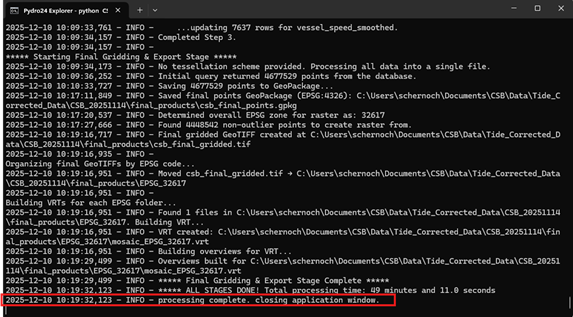
7. Click '**Start** **Processing**' and allow it to run. You can watch processing progress in the command line window. The application window will close when processing is complete.
<span style="mso-no-proof: yes;">![](https://cms-kb.marine.usf.edu/uploads/images/gallery/2026-01/embedded-image-c2qezyul.png)</span>

<p class="callout success">Your CSB data are now tide corrected and have been output in a GeoPackage (.gpkg) that can be [visualized using GIS software](https://cms-kb.marine.usf.edu/books/crowdsourced-bathymetry-manual-2026/chapter/data-visualization "Data Visualization").</p>